

Uploading Existing Manual Test Cases to Quality Hub with DataLoader.io
Test Case Migration in Quality Hub
- How to import manual test cases (like .csv format) into Quality Hub
- How to import test cases from an existing test management solution
Preparing CSVs as per Quality Hub Object
Prepare CSV sheets as per data required in Quality Hub for a specific object (Test Case, Test Step etc.)
For example:
If existing test cases have to be uploaded to Quality Hub, then create a CSV file, define columns in it and add data accordingly.
Quality Hub Test Case object
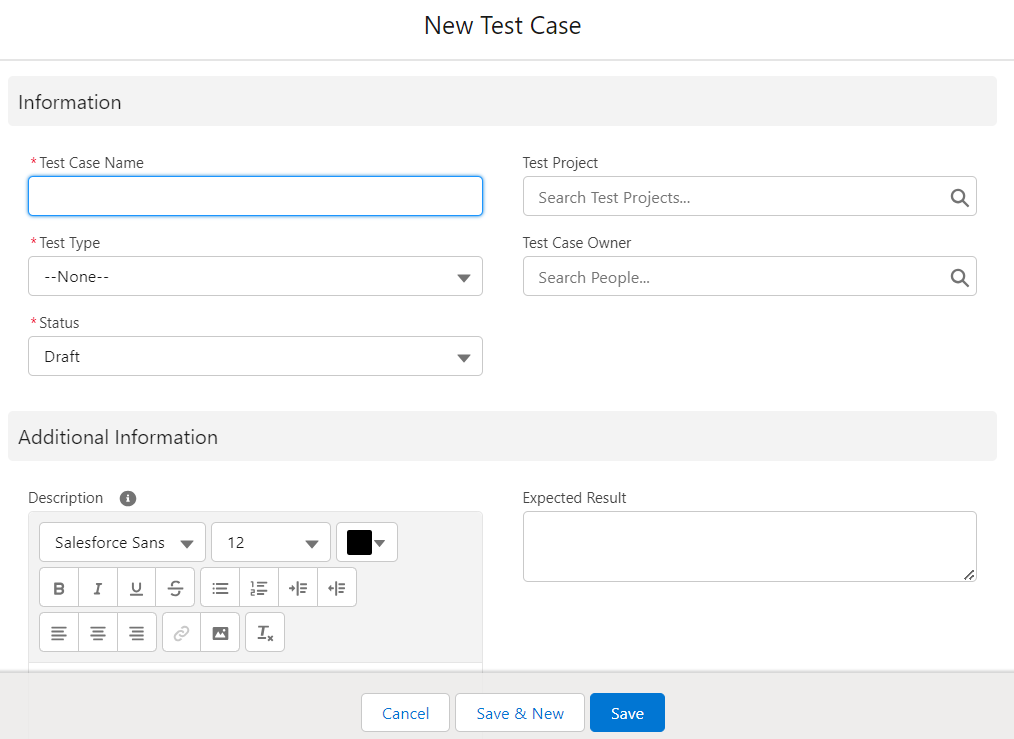
Sample CSV, with data filled (as per the data required for Quality Hub Test Case object)

Note : Column Names in CSV can be different from the fields in object
Creating a Task in DataLoader.io
- Login to dataloader.io, with salesforce instance where data needs to be downloaded
- Go to NewTask & Select import
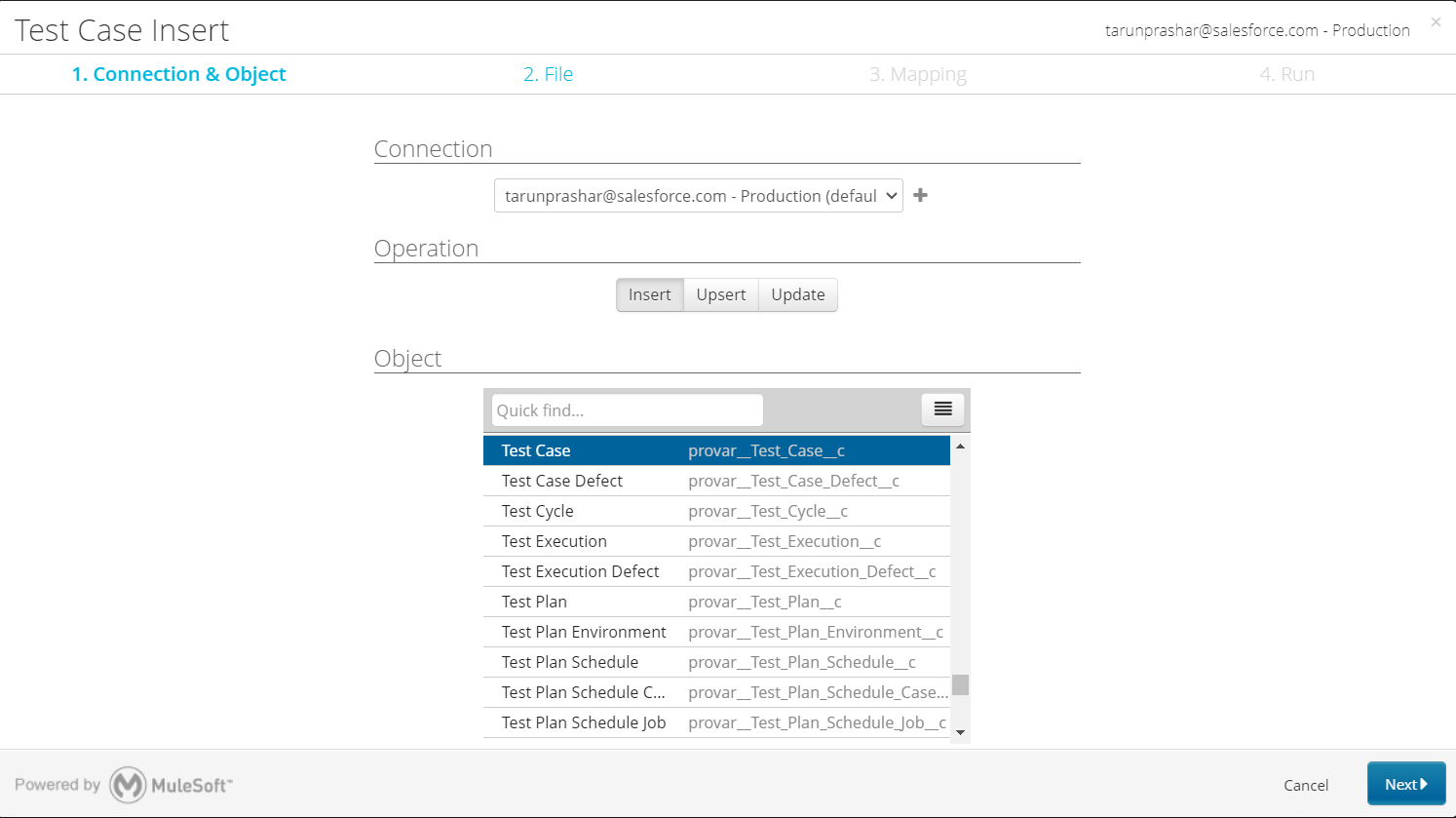
- Select the respective Provar Manager Object (eg: TestCase) and click Next
- Upload the CSV file for data
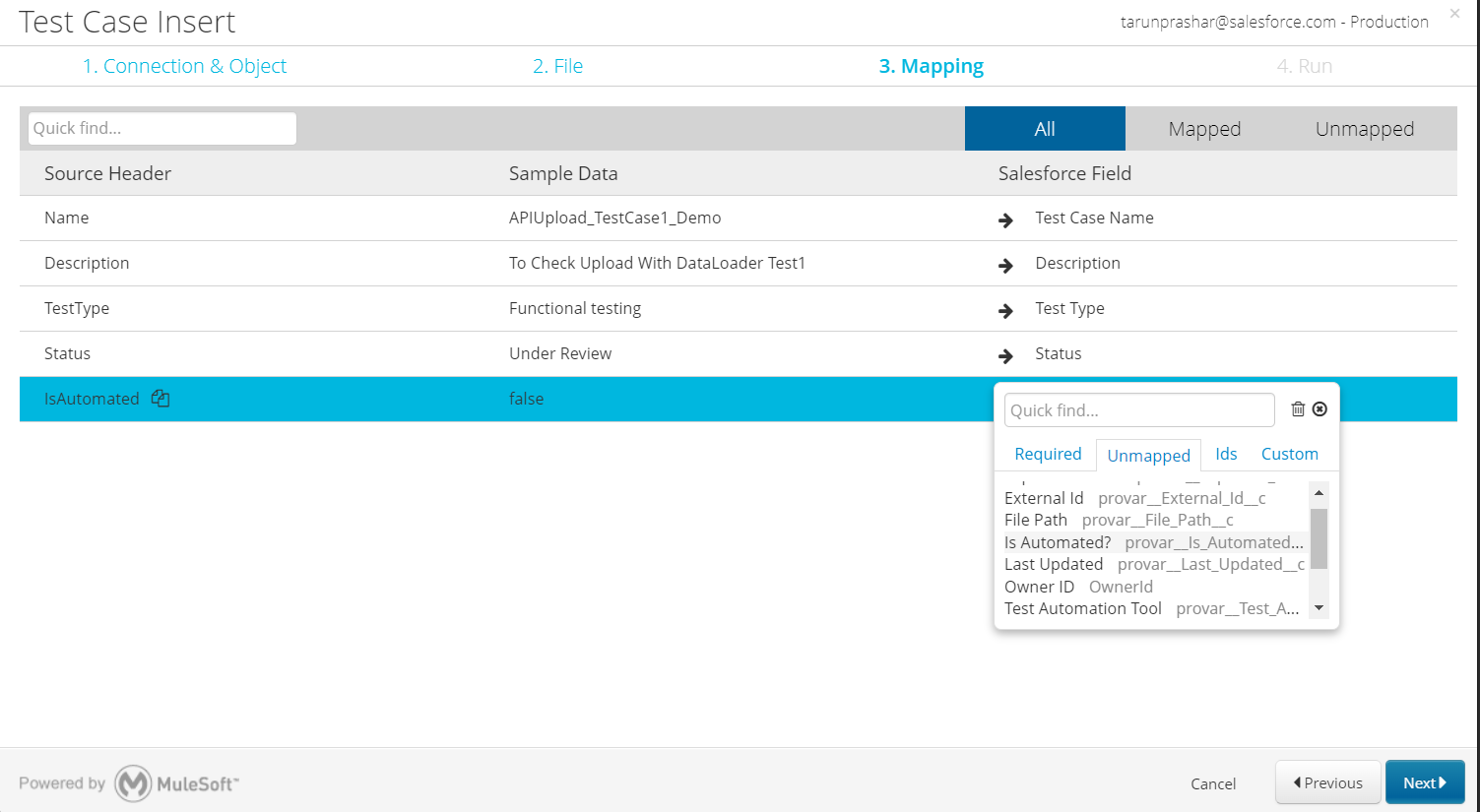
- Map the Source Header (CSV columns) with respective Salesforce field
- Select Save & Run
Once the Data loader job is executed, data will be uploaded and same can be verified in Salesforce.
